How to add borders to multiple photos at once on iPhone
After a trip I usually have twenty photos I want to post. Most border apps make you open each one, set the border, save it, and start again. That’s twenty rounds of the same taps, and twenty chances to get the width a little different.
Batch bordering takes one pass. You set the border once and every photo gets the same frame. Here are the ways to do it on an iPhone, from the quickest to the most automatic.
Why a batch matters
A set of photos looks like a set when the frames match. In an Instagram carousel or a profile grid, a border that is 5% wide on one photo and 6% on the next stands out. Applying one setting to every photo removes the problem. It also saves time: the work is the same for two photos or two hundred.
Option 1: The Multiborder app
I built Multiborder for exactly this. It’s free on the App Store for iPhone and iPad.
- Open the app and select your photos. Select as many as your phone can handle.
- Pick the shape, such as 4:5 or 3:4 for Instagram.
- Set the border width and color. The preview shows every photo with the same frame.
- Save. Pick the album and format you want.
A few details make the batch painless:
- Each photo keeps its original date, so your library stays in order.
- HDR photos keep their bright highlights in the export.
- Saving keeps going in the background, so you can switch apps while a big batch finishes.
Option 2: The share sheet
You don’t need to open the app first. In the Photos app, select the photos, tap Share, and choose Multiborder. It borders them with your last settings. This is the quickest route once you have settings you like.
Option 3: Edit in the Photos app
For a single photo, you can add a border without leaving Photos. Tap Edit, then open Multiborder from the extensions menu. The border stays editable, so you can change it later.
Option 4: A Shortcut
Multiborder adds an Add Border to Photos action to the Shortcuts app. Put it after an action that gets photos, such as your latest photos or an album, and then save the results. Run the shortcut and the whole set is bordered without opening anything. Shortcuts can run from the home screen, the share sheet or an automation, so you can make it as hands-off as you like.
Option 5: In the browser
If you’d rather not install anything, the Multiborder web editor also does batches. It runs in Safari on iPhone and in any browser on a computer. Add your photos, set the border once, and download the results one at a time, or all together as a .zip file.
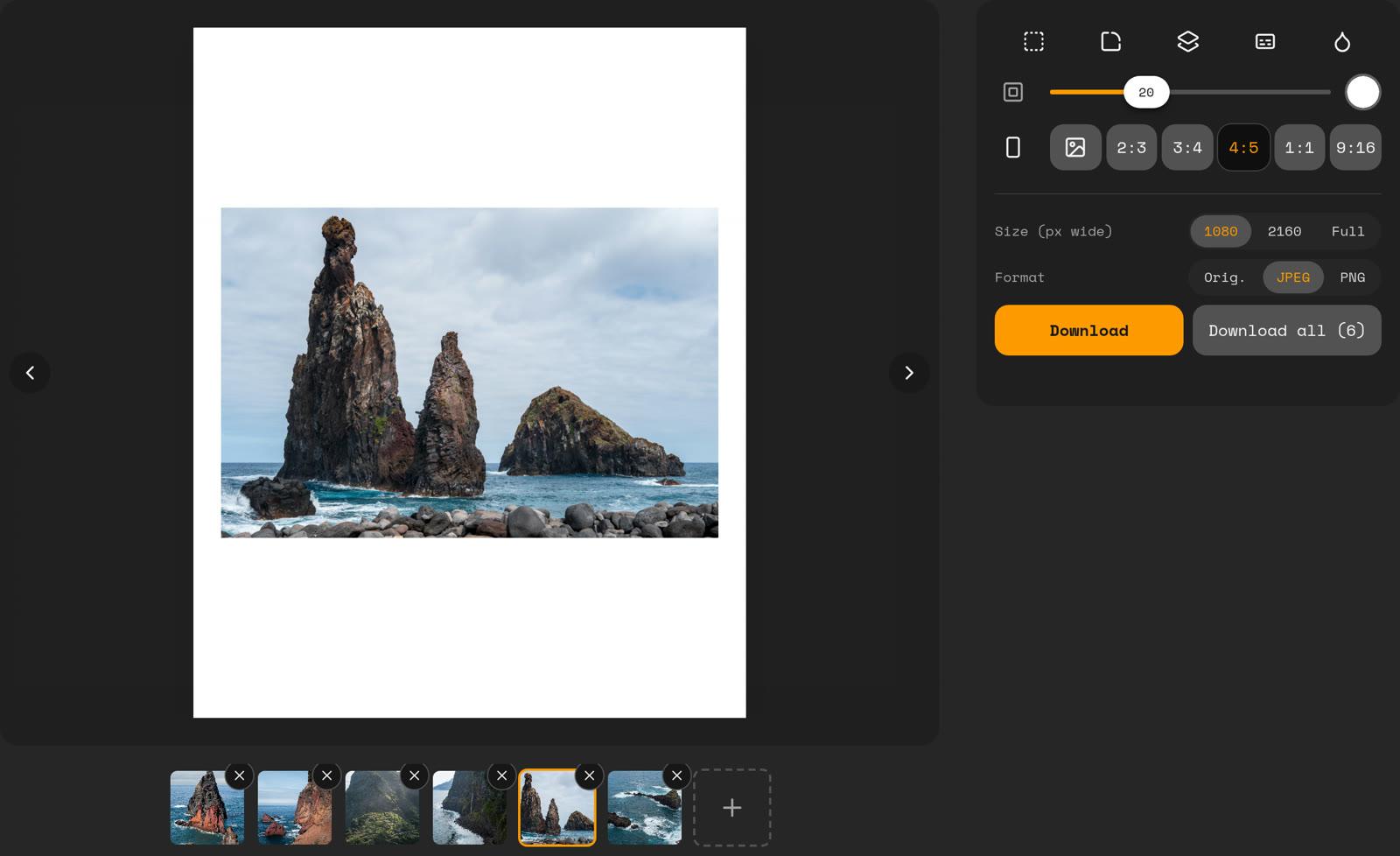
The editor works entirely on your device and uploads nothing. HEIC photos, the iPhone’s default format, open in Safari. In other browsers, use JPEG or PNG.
Which one to use
For a one-off set, open the app or the web editor. If you border photos every week, set your look once in the app and use the share sheet from then on. Once your settings are right, a batch of photos takes a few taps.