How to add a white border to Instagram photos without cropping
You post a portrait from your camera, and Instagram trims the top and bottom off. The horizon you lined up so carefully is gone, along with the subject’s feet. A white border fixes this. It pads the photo out to a shape Instagram accepts, so the whole frame survives.
I built Multiborder because I was doing this by hand for every photo I posted. Here’s what I’ve learned about getting it right.
Why Instagram crops your photos
Instagram only accepts a certain range of shapes. At the time of writing, the tallest a post can be is 3:4 (1080 × 1440 pixels), and the widest is 1.91:1. Anything outside that range gets cropped to fit.
Most cameras shoot in shapes that fall outside that range:
- Mirrorless and DSLR cameras shoot 3:2. Held upright, that’s 2:3, which is taller than 3:4. Instagram crops it.
- iPhones shoot 4:3 by default, so an upright iPhone photo is exactly 3:4 and fits. A 16:9 photo does not.
- Panoramas are far wider than 1.91:1 and lose most of their width.
The profile grid adds a second crop. It shows every post as a 3:4 tile, so a 4:5 post loses a sliver from each side and a landscape post loses a lot.
How a border solves it
A border changes the canvas, and leaves the photo alone. Take a 2:3 portrait and place it on a 3:4 white canvas. The photo keeps its full height, and white bars fill the space on its left and right. Instagram sees a 3:4 image and has nothing to crop.
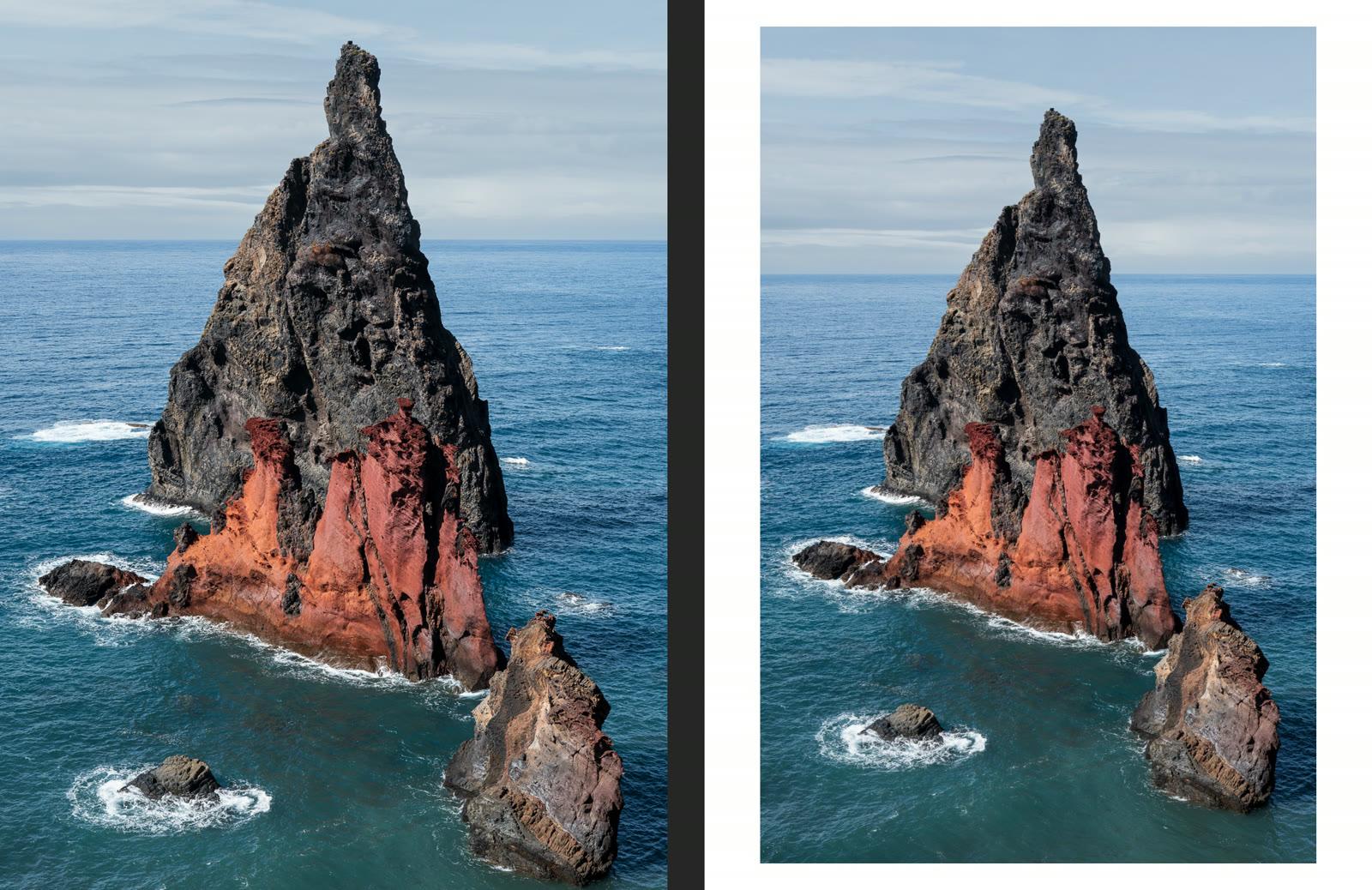
The same trick works for landscapes. Put a 3:2 landscape on a 4:5 canvas and it gets white space above and below. The photo is the same size it would have been as a landscape post, but the post fills more of the screen. A whole feed of these looks consistent, too.
Which shape to pick
- 3:4 is the tallest shape Instagram allows, and it matches the grid tiles. Your post appears on your profile exactly as you framed it.
- 4:5 was the tallest shape for years, and many people still use it. It works well if your existing feed is 4:5.
- 1:1 gives the classic square look, with the most white space around a landscape photo.
If you post a carousel, use the same shape for every photo. Instagram fits every slide to the shape of the first one, so a mixed set gets cropped.
Adding the border
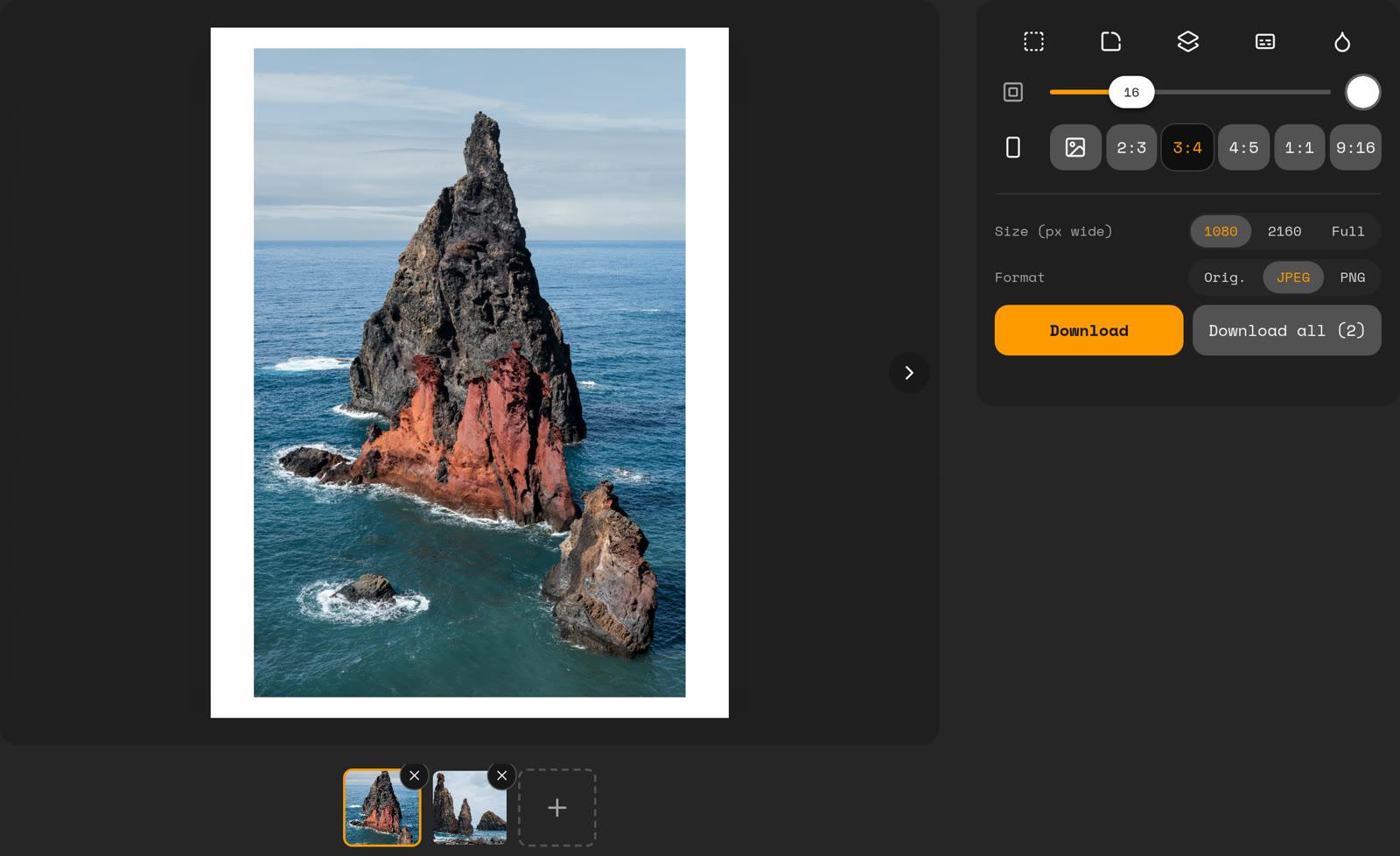
You can do this in any editor with a canvas size setting, one photo at a time. For a whole set, this is what I made Multiborder for. In the free web editor:
- Add your photos. You can add as many as you like, and they all get the same border.
- Pick 3:4 or 4:5. Turn the canvas sideways if you want a landscape frame.
- Set the border width. Even with a width of zero, the photo sits inside the canvas you chose, with white filling the gaps. A small width adds an even frame on every side as well.
- Leave the color white, or pick any other color.
- Download. For Instagram, a width of 1080 pixels is plenty.
Your photos never leave your device. The editor does all its work in the browser and uploads nothing.
Small touches that look good
- Off-white or black borders. Pure white can glare in dark mode. A warm off-white, or black for moody photos, often looks better.
- Blurred border. Instead of a flat color, fill the border with a blurred copy of the photo. It picks up the photo’s colors automatically.
- Rounded corners and a soft shadow. These lift the photo off the border, a bit like a print on a table.
Next time Instagram shows the crop handles, add a border first and post the whole photo.