How to post a full photo on Instagram without cropping
You pick a photo, tap Next, and Instagram has zoomed in on it. The edges are gone. There are three ways to get the whole photo back, and which one works depends on the shape of the photo.
1. Use the fit button
When you choose a photo for a post, Instagram shows a small button with two arrows in the corner of the preview. Tap it, or pinch the photo inward, and the preview switches from the zoomed-in crop to the photo’s own shape.
This only goes so far. At the time of writing, Instagram accepts posts between 3:4 (tall) and 1.91:1 (wide). If your photo is inside that range, the fit button shows all of it. If it’s outside, the button stops at the limit and the rest is still cropped.
2. Shoot in a shape that fits
An upright iPhone photo in the default 4:3 mode is exactly 3:4, so it fits with nothing lost. If you know a photo is going to Instagram, shooting in that mode saves you the trouble later.
This doesn’t help with the photos you already have, or with a camera that shoots 3:2. Held upright, a 3:2 photo is 2:3, which is taller than Instagram allows.
3. Add a border
A border works for every photo. You place the photo on a canvas in a shape Instagram accepts, and the border fills whatever space is left over. Instagram sees an image that already fits, so it has nothing to crop.
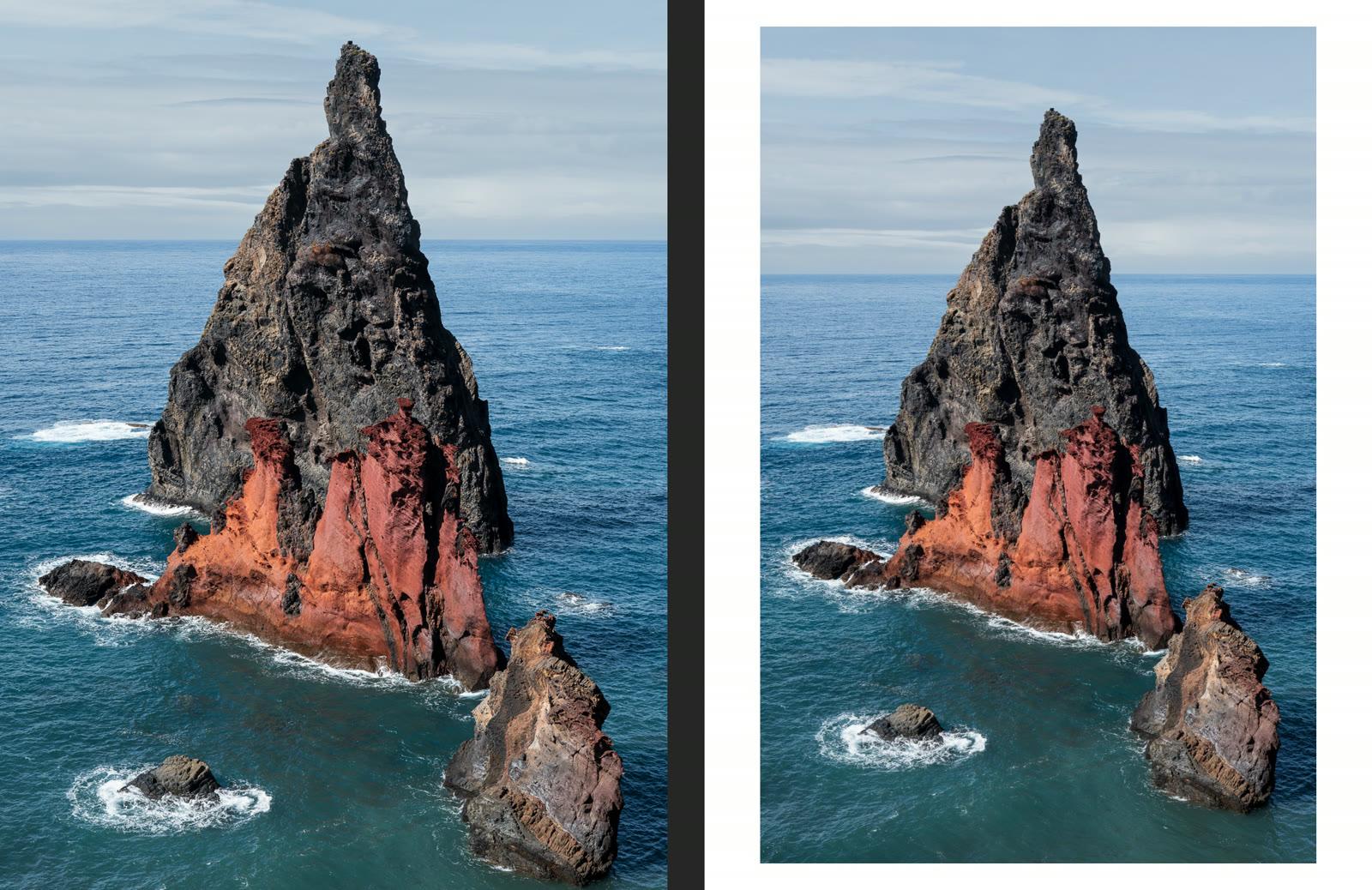
The Instagram border editor is set up for this. It opens with a 3:4 canvas and a white border:
- Choose your photos. They all get the same canvas.
- Keep 3:4, or pick 4:5 or 1:1 if that suits your feed better.
- Move Border width to make the frame on every side wider or narrower.
- Download. For Instagram, the 1080 px size is plenty.
Nothing is uploaded. The editor works on the photos in your browser.
Which one to use
- A photo that’s only slightly off, such as a 4:5 crop: the fit button is enough.
- A portrait from a camera (2:3): add a border. The fit button will still trim the top and bottom.
- A panorama or a 16:9 landscape: add a border on a tall canvas. The photo keeps its full width and the post takes up more of the screen.
- A carousel: add the same border to every photo. Instagram fits all the slides to the shape of the first one, so mixed shapes get cropped.
Not sure which canvas to choose? Here’s how 3:4, 4:5 and 1:1 compare.